Where to find it
In Online Store → Themes, open the unpublished theme editor, choose a compatible template, then Add section → Hero slideshow. Availability follows the selected template and section group.
This section is not available in the Header group.
Set it up
- Add a Slide block for each scene. Choose Image or Shopify-hosted video and select its media.
- For images, select Desktop image and optional Mobile image, then adjust each crop position.
- Inside the Slide, add Heading, Text, Button or other supported content. Each slide's content is independent.
- Set section desktop/mobile heights and slide desktop/mobile content positions. Configure any optional feature image separately from the background.
- Choose Auto-rotate slides, delay, arrows, pagination and pause/play controls. Check every slide and button in preview.
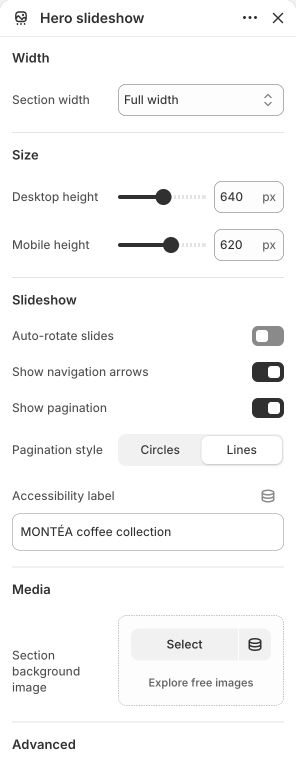
Main settings to review
| Setting | Choices or control |
|---|---|
| Desktop height | 360–900 px; step 20 |
| Mobile height | 320–800 px; step 20 |
| Auto-rotate slides | On / Off |
| Change slides every | 3–10 s; step 1 |
| Show navigation arrows | On / Off |
| Show pause/play button | On / Off |
Blocks and content
This section allows up to 10 direct blocks. Nested blocks have their own parent-specific choices and limits.
The following content blocks have their own setup and control reference. Nested blocks belong inside their parent, such as Slide, Tab, Tile or Story chapter.
Content and media
- Start with a wide desktop original around 2000–2400 px and a separately composed mobile crop when needed.
- Use editable text blocks rather than embedding headlines in the photo. Supply an actual feature image only if that extra layer is part of the design.
Check the mobile layout
- Use each Slide's Mobile content position and Mobile media position as well as section height. Check swipe, controls and all slide links.
Common questions and fixes
- A slide contains a photo without a headline: add child content blocks inside that Slide.
- The subject is cropped on a phone: choose Mobile image or adjust its crop position.
- Slides do not change automatically: review Auto-rotate slides and the preview's pause/focus state.
Full control reference
Names, choices, ranges and defaults below are read from this version of the theme. Defaults are starting examples, not promises about your business. Some controls appear only for the matching layout. Block contents and preset starting values can differ from the base defaults.
All section controls (18)
| Setting | Control or choices | Default and guidance |
|---|---|---|
| Width / Section width | Page width · Full width · Custom width | Default: Full width. |
| Width / Custom width | 50–100 %; step 5 | Default: 80. Percentage of screen width. This control appears only when the relevant layout or related option is selected. |
| Size / Desktop height | 360–900 px; step 20 | Default: 680. |
| Size / Mobile height | 320–800 px; step 20 | Default: 560. |
| Slideshow / Auto-rotate slides | On / Off | Default: On. |
| Slideshow / Change slides every | 3–10 s; step 1 | Default: 5. This control appears only when the relevant layout or related option is selected. |
| Slideshow / Show navigation arrows | On / Off | Default: On. |
| Slideshow / Show pagination | On / Off | Default: On. |
| Slideshow / Pagination style | Circles · Lines | Default: Circles. This control appears only when the relevant layout or related option is selected. |
| Slideshow / Show pause/play button | On / Off | Default: On. This control appears only when the relevant layout or related option is selected. |
| Slideshow / Accessibility label | Text | Default: Featured content. |
| Media / Section background image | Choose an image | Default: Not set. |
| Media / Section background position | Image focal point · Top · Center · Bottom | Default: Image focal point. This control appears only when the relevant layout or related option is selected. |
| Media / Section background behavior | Scroll with section · Fixed to viewport | Default: Scroll with section. This control appears only when the relevant layout or related option is selected. |
| Media / Section background overlay | 0–80 %; step 5 | Default: 0. This control appears only when the relevant layout or related option is selected. |
| Advanced / Hide on desktop | On / Off | Default: Off. This control appears only when the relevant layout or related option is selected. |
| Advanced / Hide on mobile | On / Off | Default: Off. This control appears only when the relevant layout or related option is selected. |
| Advanced / Section anchor | Text | Default: Not set. Optional. Use a unique name for links that jump to this section. |