Where to find it
In Online Store → Themes, open the unpublished theme editor, choose a compatible template, then Add section → Collection list. Availability follows the selected template and section group.
This section is not available in the Header group.
Set it up
- Choose Collections source: Manual collections uses the multi-select setting; Collection blocks uses one Collection block per card.
- Select the collections, then choose Layout and the desktop, tablet and mobile columns.
- For Circle, use Collection blocks if you want a different Hover scene image on each card.
- Choose whether to show images, titles, descriptions and product counts. Adjust section and per-block card backgrounds where needed.
- Open every card in the storefront preview and check that it reaches the intended published collection.
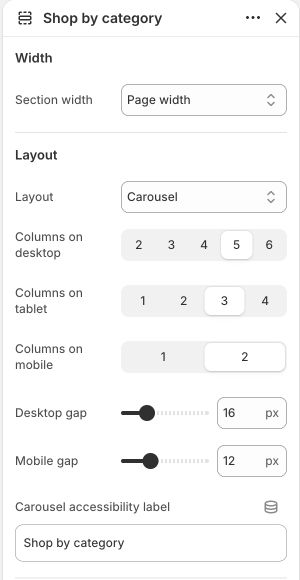
Main settings to review
| Setting | Choices or control |
|---|---|
| Collections source | Manual collections · Collection blocks |
| Manual collections | Choose collections |
| Layout | Grid · Carousel · Circle · Collage |
| Show product count | On / Off |
| Image ratio | Square · Portrait · Landscape · Wide |
| Mobile gap | 0–40 px; step 4 |
Blocks and content
This section allows up to 12 direct blocks. Nested blocks have their own parent-specific choices and limits.
- Collection: configure this inside the section. Its available controls are listed below.
Content and media
- Collection covers come from the actual collection. Use consistently framed square originals for Circle; around 1000–1600 px per side is a useful starting point.
- Hover scene image is optional and belongs to a Collection block. Keep the collection title meaningful even without hover.
Check the mobile layout
- Circle becomes a horizontal row that can be swiped. Check the mobile gap, legible titles and access to the final collection.
Common questions and fixes
- A selected collection does not appear: verify Collections source matches the field or blocks you configured.
- The circle never changes on hover: use Collection blocks and add a Hover scene image; touch devices do not provide desktop hover.
Full control reference
Names, choices, ranges and defaults below are read from this version of the theme. Defaults are starting examples, not promises about your business. Some controls appear only for the matching layout. Block contents and preset starting values can differ from the base defaults.
All section controls (30)
| Setting | Control or choices | Default and guidance |
|---|---|---|
| Width / Section width | Page width · Full width · Custom width | Default: Page width. |
| Width / Custom width | 50–100 %; step 5 | Default: 80. Percentage of screen width. This control appears only when the relevant layout or related option is selected. |
| Layout / Layout | Grid · Carousel · Circle · Collage | Default: Grid. |
| Layout / Columns on desktop | 2 · 3 · 4 · 5 · 6 | Default: 3. This control appears only when the relevant layout or related option is selected. |
| Layout / Columns on desktop | 2 · 3 · 4 · 5 | Default: 3. This control appears only when the relevant layout or related option is selected. |
| Layout / Columns on tablet | 1 · 2 · 3 · 4 | Default: 2. |
| Layout / Columns on mobile | 1 · 2 | Default: 1. |
| Layout / Desktop gap | 0–64 px; step 4 | Default: 24. |
| Layout / Mobile gap | 0–40 px; step 4 | Default: 16. |
| Layout / Carousel accessibility label | Text | Default: Collections. This control appears only when the relevant layout or related option is selected. |
| Content / Heading | Text | Default: Shop by collection. |
| Content / Subheading | Multiline text | Default: Explore distinct points of view.. |
| Content / Collections source | Manual collections · Collection blocks | Default: Collection blocks. |
| Content / Manual collections | Choose collections | Default: Not set. Used when Collections source is set to Manual collections. |
| Card / Show image | On / Off | Default: On. |
| Card / Image ratio | Square · Portrait · Landscape · Wide | Default: Square. This control appears only when the relevant layout or related option is selected. |
| Card / Show title | On / Off | Default: On. |
| Card / Show description | On / Off | Default: On. This control appears only when the relevant layout or related option is selected. |
| Card / Description length (words) | 5–30; step 5 | Default: 15. This control appears only when the relevant layout or related option is selected. |
| Card / Show product count | On / Off | Default: Off. This control appears only when the relevant layout or related option is selected. |
| Card / Card background color | Choose a color | Default: #f5f5f5. |
| Section / Color scheme | Choose a color scheme | Default: background. |
| Section / Vertical spacing | Compact · Standard · Generous | Default: Standard. |
| Media / Section background image | Choose an image | Default: Not set. |
| Media / Section background position | Image focal point · Top · Center · Bottom | Default: Image focal point. This control appears only when the relevant layout or related option is selected. |
| Media / Section background behavior | Scroll with section · Fixed to viewport | Default: Scroll with section. This control appears only when the relevant layout or related option is selected. |
| Media / Section background overlay | 0–80 %; step 5 | Default: 0. This control appears only when the relevant layout or related option is selected. |
| Advanced / Hide on desktop | On / Off | Default: Off. This control appears only when the relevant layout or related option is selected. |
| Advanced / Hide on mobile | On / Off | Default: Off. This control appears only when the relevant layout or related option is selected. |
| Advanced / Section anchor | Text | Default: Not set. Optional. Use a unique name for links that jump to this section. |
Collection block controls (4)
| Setting | Control or choices | Default and guidance |
|---|---|---|
| Collection | Choose a collection | Default: Not set. |
| Hover scene image | Choose an image | Default: Not set. Shown on desktop when the Circle layout is hovered or focused. |
| Use Collection List card background | On / Off | Default: On. |
| Card background color | Choose a color | Default: #f5f5f5. This control appears only when the relevant layout or related option is selected. |