Where to find it
In Online Store → Themes, open the unpublished theme editor, choose a compatible template, then Add section → Product showcase. Availability follows the selected template and section group.
This section is not available in the Header group.
Set it up
- Choose Products source. Select Collection or Manual products for a fixed merchandising area.
- For Dynamic — based on cart, preview with real cart items that belong to collections containing other products. This mode is not a manually curated list.
- Set Maximum products and select Grid, Carousel, Slideshow or Marquee.
- Adjust product columns and gaps, then configure View all for a suitable collection destination.
- Review product-card styling in Theme settings as well as this section. Open product links and check quick-add behavior where enabled.
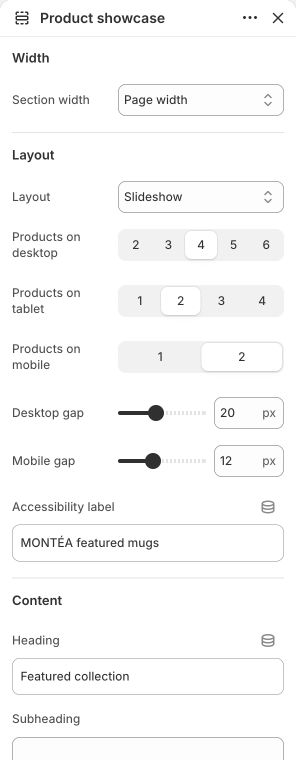
Main settings to review
| Setting | Choices or control |
|---|---|
| Products source | Collection · Manual products · Dynamic — based on cart |
| Collection | Choose a collection |
| Manual products | Choose products |
| Maximum products | 2–16; step 1 |
| Layout | Grid · Carousel · Slideshow · Marquee |
| Products on mobile | 1 · 2 |
Content and media
- Product card images come from the actual products. Consistent square originals around 1600 px per side are a useful starting point when your card setting is square.
- Dynamic cart mode looks for other products in collections associated with cart items and skips items already in the cart; it is not the Shopify recommendation mode.
Check the mobile layout
- Set Products on mobile and Mobile gap. For scrolling layouts, check swipe access to all cards and ensure add buttons remain usable.
- Slideshow uses a single horizontally scrollable row of page dots with softened edges and no previous/next arrow buttons. Swipe the products directly or select a page dot; the current dot follows the selected page.
Common questions and fixes
- Only editor placeholders appear: select products available to the Online Store and check the active source.
- The dynamic area has no useful products: add relevant cart items and review collection membership and available alternatives.
Full control reference
Names, choices, ranges and defaults below are read from this version of the theme. Defaults are starting examples, not promises about your business. Some controls appear only for the matching layout. Block contents and preset starting values can differ from the base defaults.
All section controls (27)
| Setting | Control or choices | Default and guidance |
|---|---|---|
| Width / Section width | Page width · Full width · Custom width | Default: Page width. |
| Width / Custom width | 50–100 %; step 5 | Default: 80. Percentage of screen width. This control appears only when the relevant layout or related option is selected. |
| Layout / Layout | Grid · Carousel · Slideshow · Marquee | Default: Grid. |
| Layout / Products on desktop | 2 · 3 · 4 · 5 · 6 | Default: 4. |
| Layout / Products on tablet | 1 · 2 · 3 · 4 | Default: 3. |
| Layout / Products on mobile | 1 · 2 | Default: 2. |
| Layout / Desktop gap | 0–48 px; step 4 | Default: 24. |
| Layout / Mobile gap | 0–32 px; step 4 | Default: 16. |
| Layout / Marquee duration | 10–80 s; step 5 | Default: 30. A larger number moves more slowly. This control appears only when the relevant layout or related option is selected. |
| Layout / Accessibility label | Text | Default: Products. This control appears only when the relevant layout or related option is selected. |
| Content / Heading | Text | Default: Featured products. |
| Content / Subheading | Multiline text | Default: A selection of considered essentials.. |
| Content / Products source | Collection · Manual products · Dynamic — based on cart | Default: Collection. For best sellers, new arrivals or trending products, select a Shopify collection with the matching products and sort order. |
| Content / Collection | Choose a collection | Default: Not set. |
| Content / Manual products | Choose products | Default: Not set. |
| Content / Maximum products | 2–16; step 1 | Default: 8. |
| Content / Show view all button | On / Off | Default: On. This control appears only when the relevant layout or related option is selected. |
| Content / View all button label | Text | Default: View all. This control appears only when the relevant layout or related option is selected. |
| Section / Color scheme | Choose a color scheme | Default: background. |
| Section / Section spacing | Compact · Standard · Generous | Default: Standard. |
| Media / Section background image | Choose an image | Default: Not set. |
| Media / Section background position | Image focal point · Top · Center · Bottom | Default: Image focal point. This control appears only when the relevant layout or related option is selected. |
| Media / Section background behavior | Scroll with section · Fixed to viewport | Default: Scroll with section. This control appears only when the relevant layout or related option is selected. |
| Media / Section background overlay | 0–80 %; step 5 | Default: 0. This control appears only when the relevant layout or related option is selected. |
| Advanced / Hide on desktop | On / Off | Default: Off. This control appears only when the relevant layout or related option is selected. |
| Advanced / Hide on mobile | On / Off | Default: Off. This control appears only when the relevant layout or related option is selected. |
| Advanced / Section anchor | Text | Default: Not set. Optional. Use a unique name for links that jump to this section. |