Where to find it
In Online Store → Themes, open the unpublished theme editor, choose a compatible template, then Add section → Newsletter. Availability follows the selected template and section group.
This section is not available in the Header group.
Set it up
- Write the Heading and Text to explain what subscribers should expect.
- Set Button label, alignment, section width and spacing.
- Preview empty and invalid-email states without submitting a real address.
- When you are ready to test delivery or subscription processing, authorize a real test and check the resulting customer/marketing state in Shopify. If the page has several signup forms, test each intended placement and check where the returned page takes you.
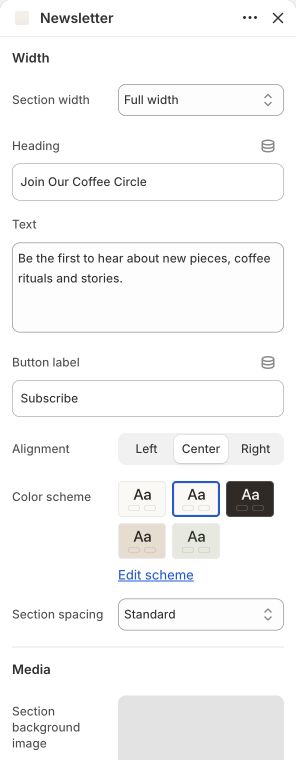
Main settings to review
| Setting | Choices or control |
|---|---|
| Heading | Text |
| Text | Multiline text |
| Button label | Text |
| Alignment | Left · Center · Right |
| Section spacing | Compact · Standard · Generous |
Content and media
- A shared section background image is optional. Keep the input, button and success/error text readable over it.
- This section does not send a welcome campaign by itself. Configure your actual marketing process separately.
Check the mobile layout
- Review input and button sizing, long translated labels and the success/error message at phone width.
Common questions and fixes
- Signup shows success but no marketing email arrives: a successful form response does not establish campaign delivery.
- The address is rejected: enter a valid email and check the displayed response before retrying.
Full control reference
Names, choices, ranges and defaults below are read from this version of the theme. Defaults are starting examples, not promises about your business. Some controls appear only for the matching layout. Block contents and preset starting values can differ from the base defaults.
All section controls (15)
| Setting | Control or choices | Default and guidance |
|---|---|---|
| Width / Section width | Page width · Full width · Custom width | Default: Page width. |
| Width / Custom width | 50–100 %; step 5 | Default: 80. Percentage of screen width. This control appears only when the relevant layout or related option is selected. |
| Width / Heading | Text | Default: Keep in touch. |
| Width / Text | Multiline text | Default: Receive occasional notes, new arrivals, and thoughtful updates.. |
| Width / Button label | Text | Default: Not set. |
| Width / Alignment | Left · Center · Right | Default: Center. |
| Width / Color scheme | Choose a color scheme | Default: surface. |
| Width / Section spacing | Compact · Standard · Generous | Default: Standard. |
| Media / Section background image | Choose an image | Default: Not set. |
| Media / Section background position | Image focal point · Top · Center · Bottom | Default: Image focal point. This control appears only when the relevant layout or related option is selected. |
| Media / Section background behavior | Scroll with section · Fixed to viewport | Default: Scroll with section. This control appears only when the relevant layout or related option is selected. |
| Media / Section background overlay | 0–80 %; step 5 | Default: 0. This control appears only when the relevant layout or related option is selected. |
| Advanced / Hide on desktop | On / Off | Default: Off. This control appears only when the relevant layout or related option is selected. |
| Advanced / Hide on mobile | On / Off | Default: Off. This control appears only when the relevant layout or related option is selected. |
| Advanced / Section anchor | Text | Default: Not set. Optional. Use a unique name for links that jump to this section. |