Where to find it
Open Header group → Header. The logo itself is configured in Theme settings → Brand.
Set it up
- Select the main Menu and configure its links and hierarchy in Shopify's menu editor.
- Choose Desktop Header layout, header width, height, menu spacing and trigger behavior.
- For a mega menu, add a Mega menu block and match Menu item to the intended top-level menu label. Configure its optional collection and promotion content.
- Choose desktop sticky behavior and any page-specific transparent Header settings, checking text contrast over the first section.
- Set Mobile header height, mobile menu style and Mobile header sticky behavior. The mobile top row contains menu and logo, plus the native account entry when customer accounts are enabled in Shopify.
- Set Mobile bottom navigation behavior to Show when scrolling down or Always visible. Its items are Collection, Menu, Cart and Search; review them together with the menu drawer.
- Use Show country selector to control the Header country/currency selector. A language selector can still appear when multiple storefront languages are available.
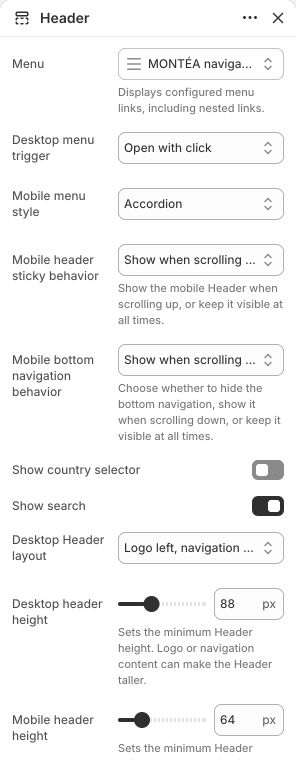
Main settings to review
| Setting | Choices or control |
|---|---|
| Menu | Choose a menu |
| Desktop Header layout | Logo left, navigation inline · Logo left, navigation centered · Logo centered, navigation inline · Logo centered, navigation below · Logo centered, menu split |
| Desktop menu trigger | Open with click · Open on hover |
| Mobile header height | 48–120 px; step 2 |
| Mobile header sticky behavior | Show when scrolling up · Always visible |
| Mobile bottom navigation behavior | Show when scrolling down · Always visible |
Blocks and content
This section allows up to 8 direct blocks. Nested blocks have their own parent-specific choices and limits.
- Mega menu: configure this inside the section. Its available controls are listed below.
Content and media
- Add global desktop/mobile logo sizes under Theme settings → Brand. Mega menu promotion images are optional and belong to the matching Mega menu block.
Check the mobile layout
- The bottom navigation hides while the drawer is open. In scrolling mode, close the drawer and scroll down to show it again. Test menu links separately from submenu toggles and check the account/localization area at the drawer bottom.
Common questions and fixes
- A mega menu does not attach: check the Menu item label against the actual top-level menu text.
- A link opens a submenu instead of a page: review menu style and use the intended link versus toggle control.
- A transparent Header is hard to read: change its foreground color or disable transparency for that page type.
Full control reference
Names, choices, ranges and defaults below are read from this version of the theme. Defaults are starting examples, not promises about your business. Some controls appear only for the matching layout. Block contents and preset starting values can differ from the base defaults.
All section controls (23)
| Setting | Control or choices | Default and guidance |
|---|---|---|
| Menu | Choose a menu | Default: main-menu. Displays configured menu links, including nested links. |
| Desktop menu trigger | Open with click · Open on hover | Default: Open with click. |
| Mobile menu style | Accordion · Page navigation | Default: Accordion. |
| Mobile header sticky behavior | Show when scrolling up · Always visible | Default: Show when scrolling up. Show the mobile Header when scrolling up, or keep it visible at all times. |
| Mobile bottom navigation behavior | Show when scrolling down · Always visible | Default: Show when scrolling down. Choose whether to hide the bottom navigation, show it when scrolling down, or keep it visible at all times. |
| Show country selector | On / Off | Default: On. |
| Show search | On / Off | Default: On. |
| Desktop Header layout | Logo left, navigation inline · Logo left, navigation centered · Logo centered, navigation inline · Logo centered, navigation below · Logo centered, menu split | Default: Logo centered, menu split. |
| Desktop header height | 48–160 px; step 2 | Default: 80. Sets the minimum Header height. Logo or navigation content can make the Header taller. |
| Mobile header height | 48–120 px; step 2 | Default: 80. Sets the minimum Header height. Logo or navigation content can make the Header taller. |
| Desktop menu spacing | 4–40 px; step 1 | Default: 16. Controls the space between top-level navigation links on screens 750px and wider. |
| Header text size | 12–24 px; step 1 | Default: 15. Controls the Header navigation and text-logo size. Icon sizes are unchanged. |
| Header width | Page width · Full width | Default: Page width. |
| Header background color | Choose a color | Default: #FFFFFF. Choose colors with sufficient contrast for Header text, links, icons, and controls; the theme does not calculate or enforce contrast. |
| Header foreground color | Choose a color | Default: #333333. Choose colors with sufficient contrast for Header text, links, icons, and controls; the theme does not calculate or enforce contrast. |
| Transparent Header on home page | On / Off | Default: Off. |
| Transparent Header on product pages | On / Off | Default: Off. |
| Transparent Header on collection pages | On / Off | Default: Off. |
| Transparent mobile Header on home page | On / Off | Default: Off. |
| Transparent mobile Header on product pages | On / Off | Default: Off. |
| Transparent mobile Header on collection pages | On / Off | Default: Off. |
| Transparent Header foreground color | Choose a color | Default: #FFFFFF. Choose a foreground color with sufficient contrast against the first page section when the Header is transparent; the theme does not calculate or enforce contrast. |
| Header sticky behavior | Always sticky · Sticky after scrolling · Not sticky | Default: Not sticky. Always sticky remains at the top from page load. Sticky after scrolling activates after the original Header position is passed. Not sticky scrolls normally. |
Mega menu block controls (14)
| Setting | Control or choices | Default and guidance |
|---|---|---|
| Menu item | Text | Default: Not set. Enter the title of a top-level menu item. Matching ignores case and punctuation. |
| Show menu links | On / Off | Default: On. |
| Show featured products in mobile navigation | On / Off | Default: Off. |
| Show promotion in mobile navigation | On / Off | Default: Off. |
| Menu heading | Text | Default: Not set. |
| Menu description | Formatted text | Default: Not set. |
| Collection | Choose a collection | Default: Not set. Optional. Products are taken directly from this collection. |
| Collection heading | Text | Default: Not set. |
| Product limit | 1–8; step 1 | Default: 3. |
| Promotion image | Choose an image | Default: Not set. |
| Promotion heading | Text | Default: Not set. |
| Promotion text | Multiline text | Default: Not set. |
| Promotion link | Choose or enter a link | Default: Not set. |
| Promotion link label | Text | Default: Not set. |